GeoAstra World-Wide NTRIP Service — User Manual
- Product: GeoAstra World-Wide RTK NTRIP Service
- Site: https://world-wide-ntrip.geoastra.com
- Audience: End users (trial and paid service)
- Version: 1.0.0
1. Introduction
GeoAstra World-Wide NTRIP delivers RTK correction data over the internet so your rover can reach centimeter-level positioning without running your own base station.
Typical workflow:
- Sign in at world-wide-ntrip.geoastra.com.
- Start a one-time 14-day free trial, or buy a paid license and activate the key.
- Open Credentials / Connection and enter host, port, username, password, and mountpoint in your NTRIP client / rover.
- Optionally use the Accuracy Map to check expected accuracy near your work area.
2. Sign in / Sign out
2.1 Sign in
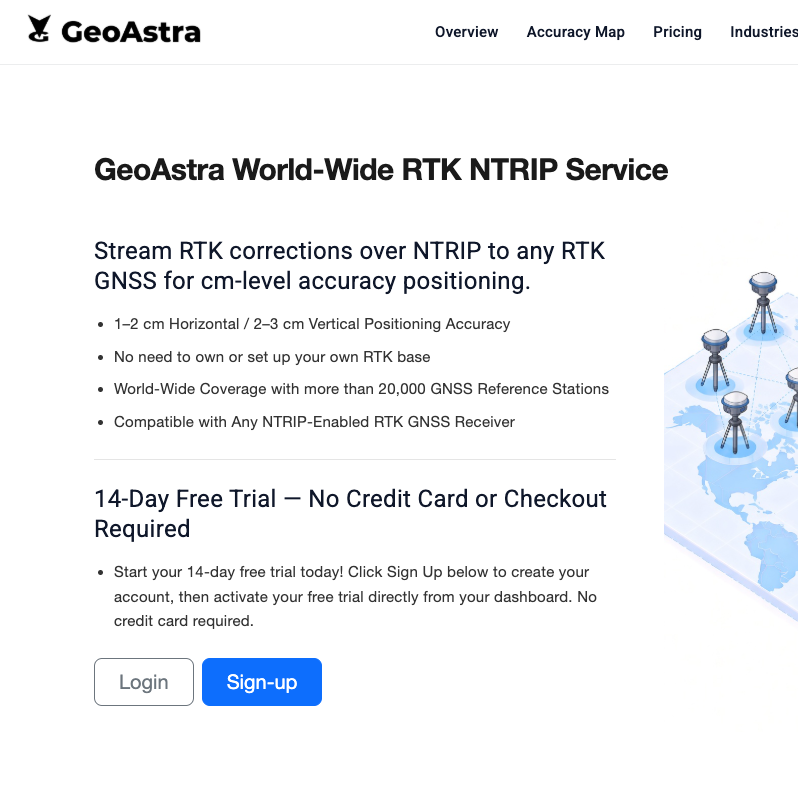
- Open https://world-wide-ntrip.geoastra.com.
- Click Login (or Sign-up if you do not have an account yet).
- On the sign-in screen, choose one of:
- Sign in with Apple
- Sign in with Google
- Sign in with Microsoft
- Or email + password, then LOG IN
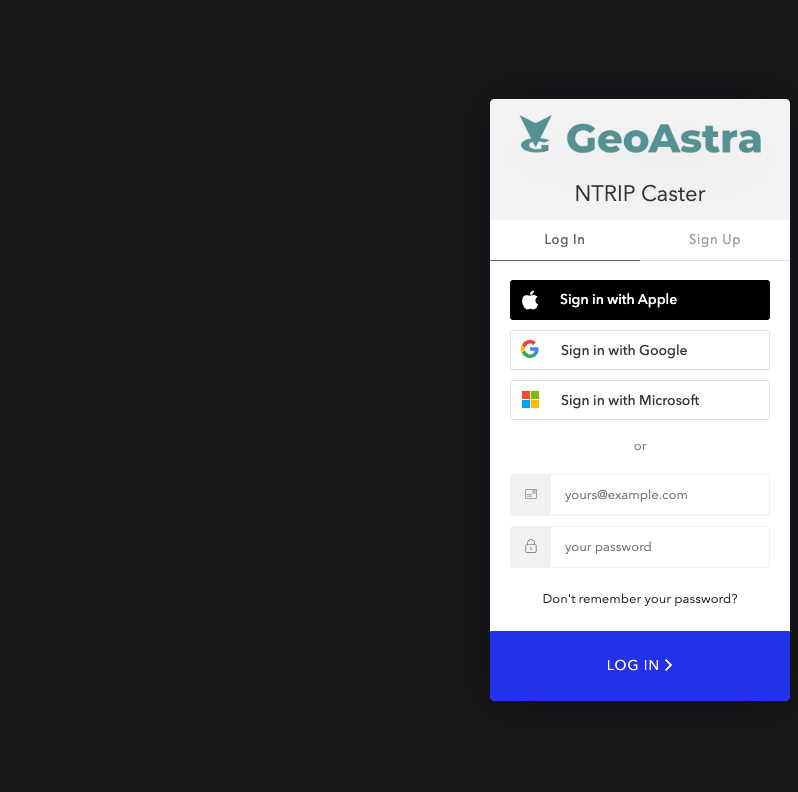
- After a successful login you land on Service Status (
/worldwide-ntrip).
2.2 Sign out
In the top bar, click the yellow Sign-out button. You return to the public site and must sign in again to manage your service.
3. Start a 14-day free trial
Rules (important)
- The trial is one-time per customer.
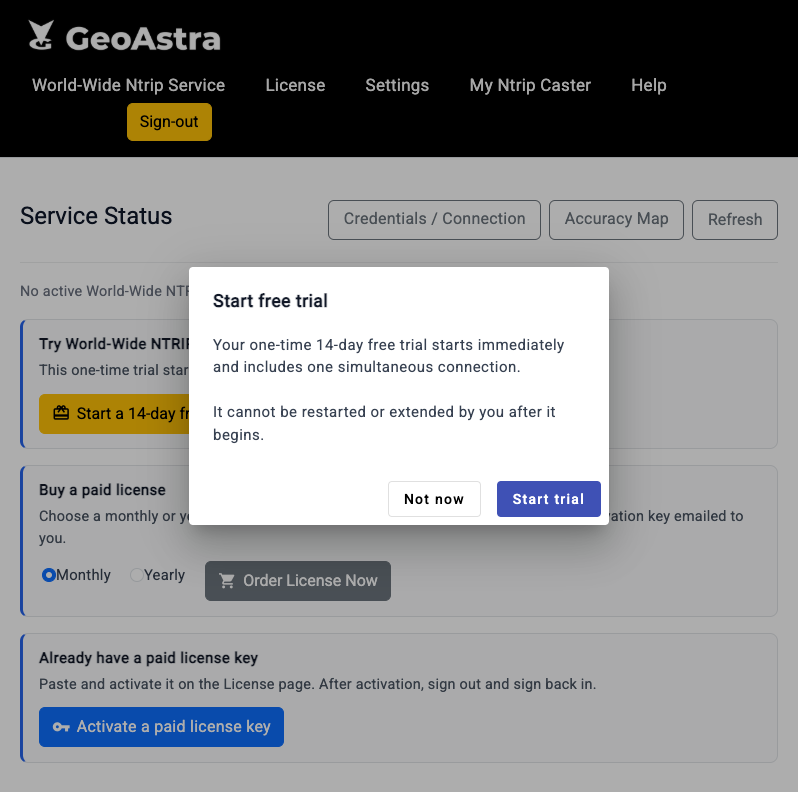
- It starts immediately when you confirm.
- It includes one simultaneous connection.
- You cannot restart or extend the trial yourself after it begins.
- No credit card is required to start the trial.
Steps
- Sign in and open World-Wide Ntrip Service → Service Status.
- If you have never used the service, you should see No active World-Wide NTRIP subscription and a yellow Start a 14-day free trial button.
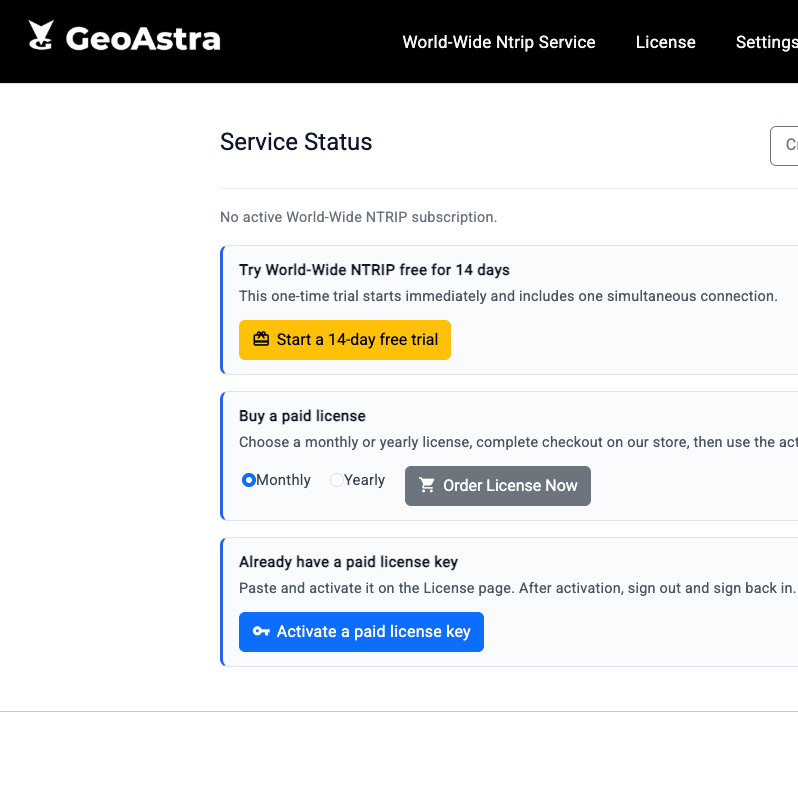
- Click Start a 14-day free trial.
- Read the confirmation dialog, then click Start trial (or Not now to cancel).
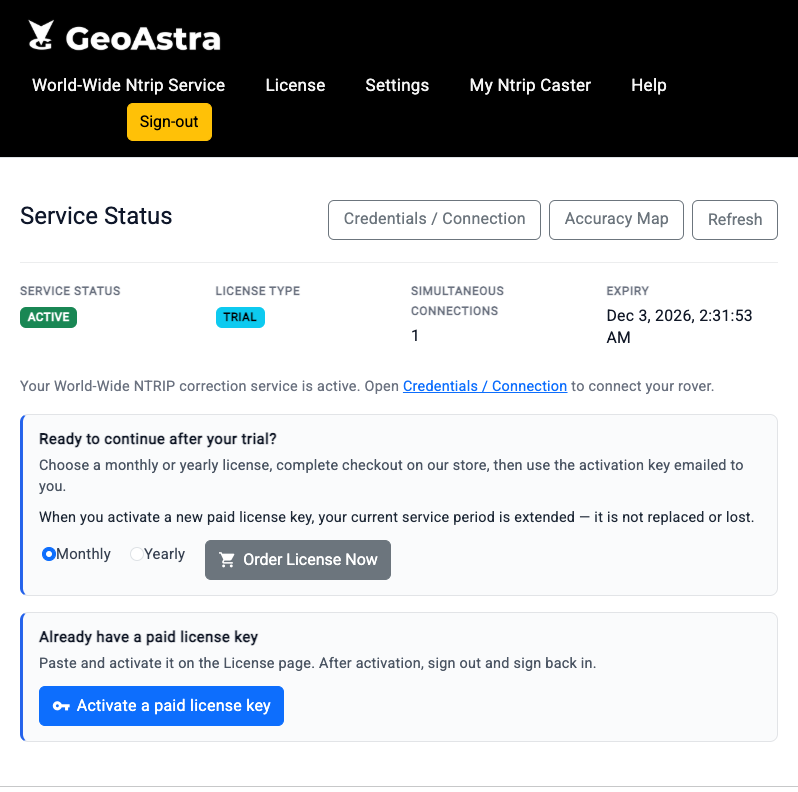
- When provisioning finishes, Service Status shows:
- Service status: ACTIVE
- License type: TRIAL
- Simultaneous connections: 1
- Expiry: end of the 14-day period
- Click Credentials / Connection to get connection details for your rover (see §5).
When the trial ends, status may show TRIAL ENDED. Purchase and activate a paid license to continue.
4. Buy and activate a paid license
This section covers the in-app flow only. Store checkout happens on GPSWebShop; you receive an activation key by email after purchase.
4.1 Order from Service Status
- On Service Status, under Buy a paid license / Renew your paid license:
- Choose Monthly or Yearly.
- Click Order License Now.
- Complete checkout on the store in the new browser tab.
- Wait for the email that contains your activation key.
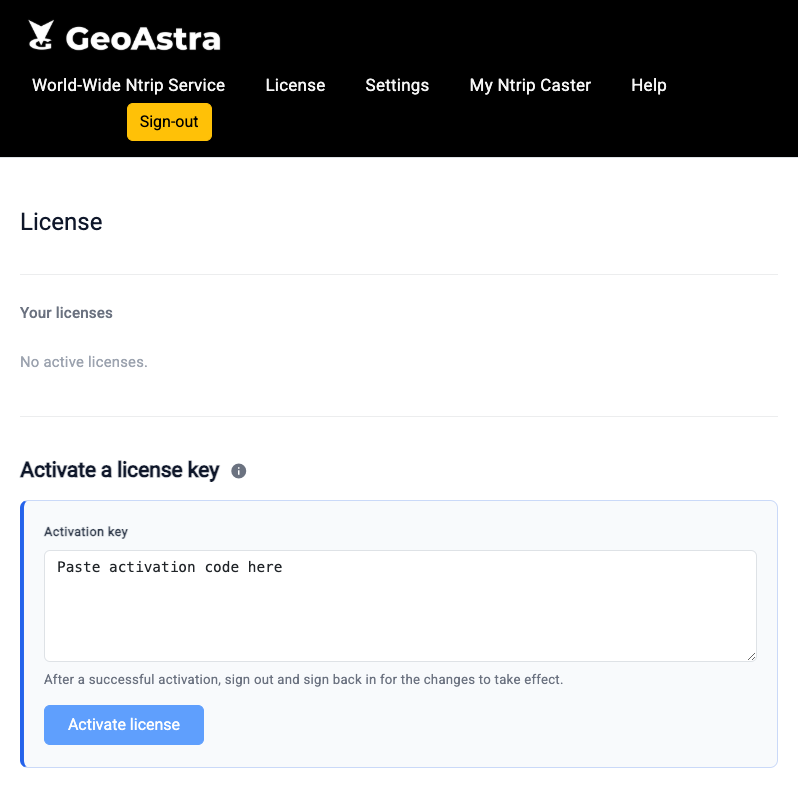
4.2 Activate the key
- Open License in the top navigation (or click Activate a paid license key on Service Status).
- Paste the key into Activation key.
- Click Activate license.
- Sign out, then sign back in so your session picks up the new entitlement.
4.3 Confirm paid service is active
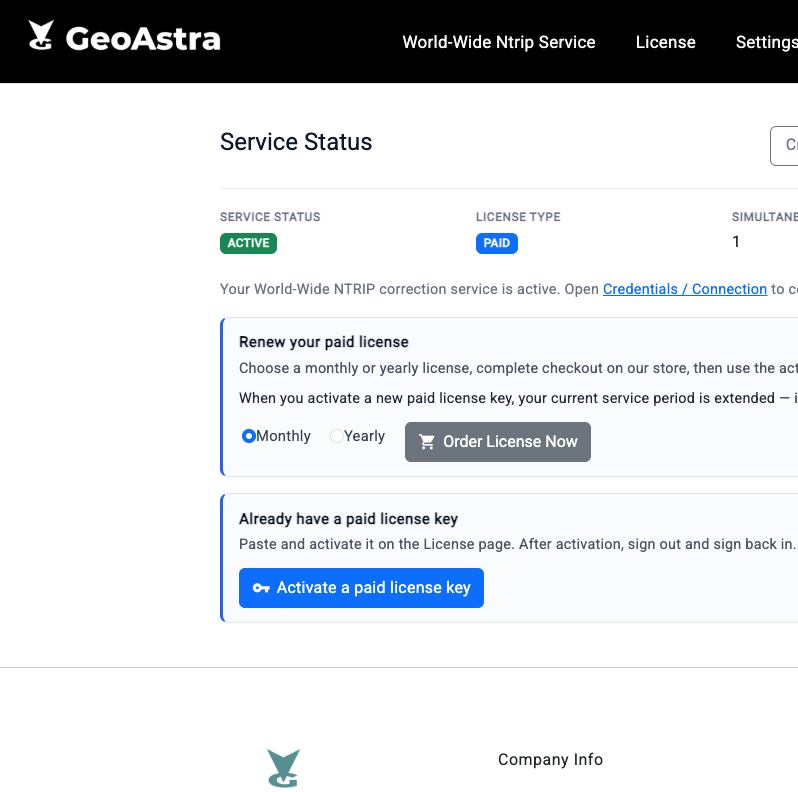
After re-login, Service Status should show:
- Service status: ACTIVE
- License type: PAID
- Expiry of the current paid term
Activating an additional paid key extends your current period; it does not wipe unused time.
5. Credentials / Connection
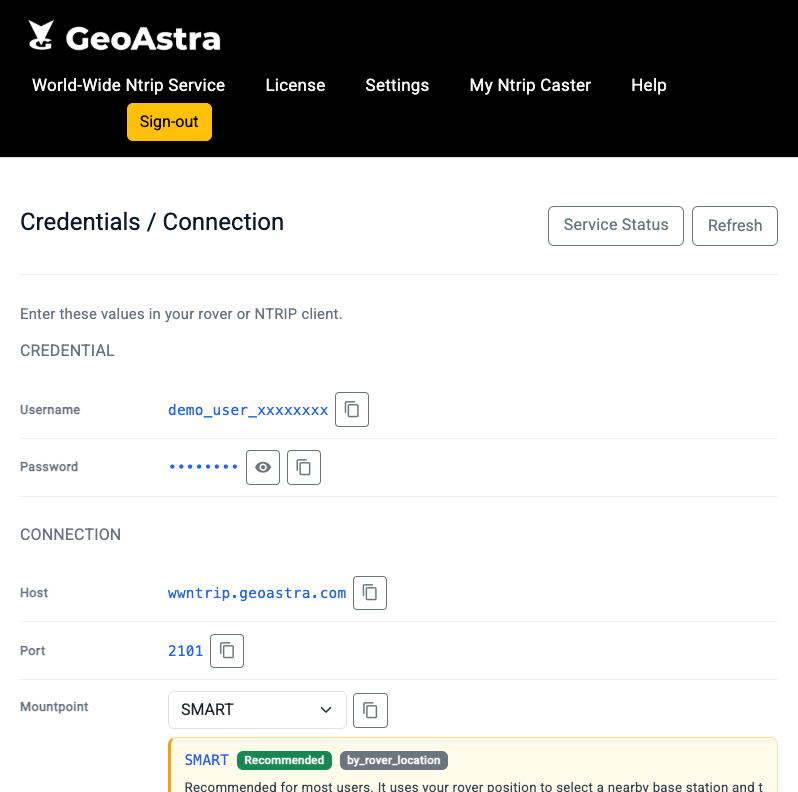
Use these values in any NTRIP-capable RTK rover or NTRIP client.
- Open World-Wide Ntrip Service → Credentials / Connection.
- Copy the fields below into your client:
| Field | What to enter |
|---|---|
| Username | Your assigned NTRIP username |
| Password | Your assigned NTRIP password (use Show only when needed) |
| Host | wwntrip.geoastra.com |
| Port | 2101 (TCP NTRIP) |
| Mountpoint | Prefer SMART (recommended) unless your project requires a fixed frame |
Mountpoint tip: SMART
SMART is recommended for most users. It uses your rover’s position to select a nearby base and an appropriate reference frame.
Require GGA: For SMART mountpoints, enable NMEA GGA reporting in your NTRIP client. Without GGA, the caster cannot locate a nearby station and the connection will not behave as intended.
Generic rover checklist
- Create an NTRIP caster / client profile.
- Enter Host, Port, Username, Password, Mountpoint.
- Enable GGA output if using SMART.
- Connect and wait for an RTK fix (time depends on sky view and receiver).
6. Accuracy Map
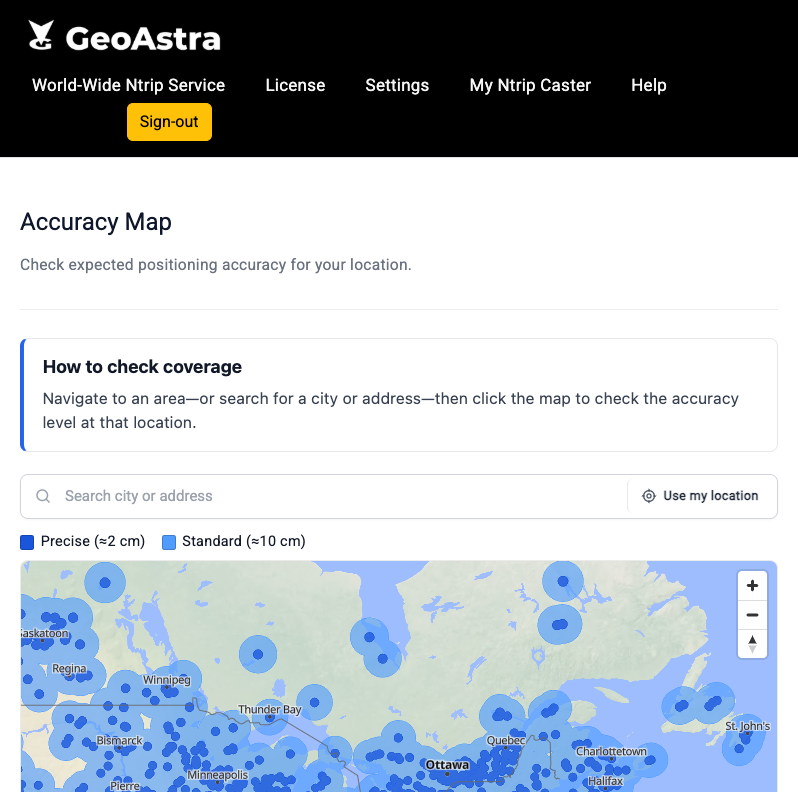
The Accuracy Map shows indicative expected positioning accuracy for a location.
- Open World-Wide Ntrip Service → Accuracy Map.
- Search for a city/address, use Use my location, or pan/zoom the map.
- Click the map to inspect accuracy at that point.
- Legend:
- Precise (≈2 cm)
- Standard (≈10 cm)
Coverage updates roughly every 15 minutes from online base stations. Actual accuracy still depends on your receiver, mountpoint, and GGA reporting.
7. Troubleshooting
| Symptom | What to try |
|---|---|
| Cannot see trial button | You may already have used the one-time trial, or already have a license. Check Service Status badges. |
| Credentials page unavailable | Service must be ACTIVE. Suspended or ended services cannot use credentials. |
| Rover connects but no fix | Confirm Host/Port/user/password/mountpoint; enable GGA for SMART; check sky view and antenna. |
| Paid key activated but status unchanged | Sign out and sign back in after activation. |
| Forgot password | Use Don't remember your password? on the sign-in screen (email/password accounts). |
8. Support
- Email: info@geoastra.com
- Community / docs: Documentation, Support Forums, Blogs, News
When contacting support, include: approximate time of the issue, Service Status (ACTIVE / TRIAL / PAID), and whether you are on trial or paid (do not send your NTRIP password in plain email if avoidable).